Dceniac Spreadsheet & Table Field for Jira — Documentation
Overview: Dceniac Spreadsheet & Table Field for Jira adds structured multi-row spreadsheet tables and locked checklist matrices as native Jira custom fields across Jira Cloud issues and Jira Service Management customer portals. Paste rows straight from Excel, Google Sheets, CSV, or Markdown, calculate line subtotals and grand totals with zero-eval fixed-point formulas, enforce required cells, and query values in JQL and Jira Automation.
Architecture: 100% Runs on Atlassian (Forge). Zero external servers, databases, or third-party analytics — all field configurations and table values stay natively inside your Jira Cloud site.
1. Installation & How to Access / Test the App
- Install from Marketplace: Sign in as a Jira administrator, open Apps → Explore more apps, search for Dceniac Spreadsheet & Table Field for Jira, and click Try it free (free for teams of up to 10 users).
- Create a Custom Field:
- Click the Settings (⚙️) icon in the top-right corner of Jira and choose Work items (or Issues).
- In the left sidebar, select Fields → Custom fields (or Custom fields under Fields), then click Create custom field.
- Switch to the Advanced (or All) tab, select Dceniac Spreadsheet & Table Field, and click Next.
- Enter a field name (for example,
Procurement Line ItemsorRelease Gates) and click Create.
- Add to Project Screens: Check the Jira Software, Jira Work Management, or Jira Service Management screens where the field should appear (such as Default Screen or your project's Create/Edit/View screen) and click Update.
- Configure Columns (Optional — Starter Schema Ready Immediately): Next to your new custom field, click ••• → Contexts and default value → Edit custom field config to open the visual configuration studio.
2. Visual Configuration Studio & 5-Second Magic Schema
Opening Edit custom field config launches the split-screen Dceniac Spreadsheet & Table Field for Jira configuration studio:
- 6 One-Click Enterprise Templates: Load pre-built schemas instantly for IT Procurement & Budget, Release Matrix (Locked), Employee Access & Onboarding, QA Multi-Env Regression, Expense Reimbursement, or Incident Action Tracker.
- 5-Second Magic Schema from Excel / CSV: Click ✨ Build from Excel / CSV, paste a header row plus 2–5 sample rows copied from Excel, Google Sheets, CSV, or a Markdown table, and apply the inferred column names, types, currency symbols, select options, and optional template rows in one click.
- Live Split-Screen Preview: Test both Issue User Preview and Template Rows in Light or Dark mode on the right before clicking Save Configuration. Separate Jira Custom Field Contexts are supported per project and issue type.
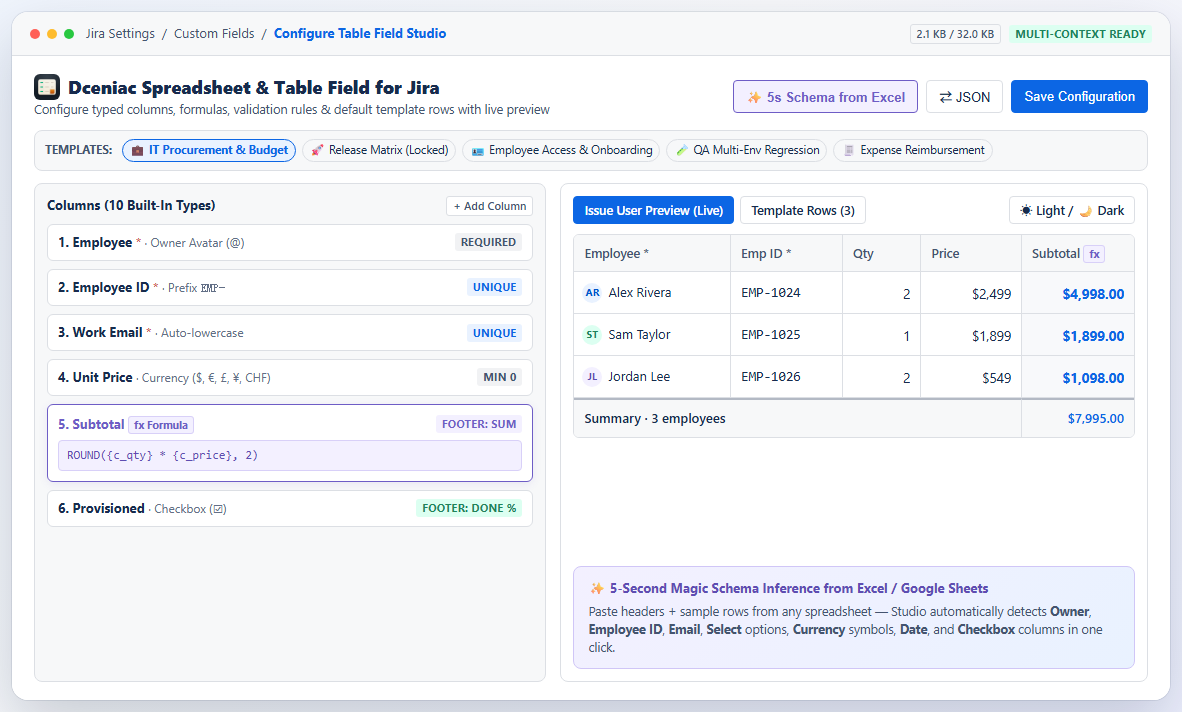
3. Column Types & Fixed-Point Formula Reference
Each table supports up to 15 strongly-typed columns and up to 200 rows (within Jira's 32 KB native custom field storage budget, monitored live in the studio header):
| Column Type | Validation & Formatting Rules |
|---|---|
Text | Max length, duplicate check, clickable https:// links, and URL / alphanumeric / safe custom regex presets. |
Number | Decimal places (0–6), min/max bounds, thousands formatting, and footer Sum / Avg / Min / Max. |
Currency | Supports $, €, £, ¥, A$, C$, and CHF, accounting negatives (120.00), bounds, and exact decimal totals. |
Formula | Read-only computed column using fixed-point decimal math (zero IEEE-754 float drift, zero eval, cycle detection). |
Select | Dropdown options with 5 semantic status lozenge colors (neutral, info, in-progress, success, warning, danger). |
Checkbox | Boolean toggle; optionally required (must be checked) and automatically drives the completion progress bar. |
Date | Strict YYYY-MM-DD calendar check, min/max date bounds, and optional disallow past dates rule. |
Owner | Deterministic color avatar initials badge with instant in-table autocomplete across existing row owners. |
Email | Automatic trim + lowercase normalization, RFC-style format validation, and optional duplicate guard. |
Employee ID | Monospace badge, optional required prefix (such as EMP-), and uniqueness validation. |
Formula syntax examples: Reference other columns by name or ID inside curly braces {Column Name}. Supported operators and functions include +, -, *, /, parentheses, comparisons (=, !=, <, <=, >, >=), and ROUND(x, decimals), ABS(x), MIN(a, b, …), MAX(a, b, …), IF(cond, thenVal, elseVal) — for example: ROUND({Qty} * {Unit Price}, 2) or IF({Approved}, {Amount}, 0).
4. Editing Issues, Smart Excel Paste & 1-Click Export
- Inline Keyboard-First Editing: Open any Jira issue on a screen containing your field and click the field (or fill it directly on the Create Issue dialog). Navigate cells with Tab, Shift+Tab, Enter, and arrow keys; undo or redo up to 30 steps with Ctrl/⌘+Z and Ctrl/⌘+Y.
- Cell-Anchored Smart Paste: Click any cell and press Ctrl/⌘+V to paste rectangular ranges copied from Excel, Google Sheets, CSV, GitHub-Flavored Markdown pipe tables, or Markdown task lists (
- [x]). Header rows are matched automatically when present, and read-only formula or locked columns are never overwritten. You can also click Paste Import in the toolbar to append or replace rows explicitly. - 1-Click Export: From both edit mode and read-only issue views, click Export to copy or download the table as Excel / Sheets (TSV), UTF-8 CSV, or Markdown (with built-in CWE-1236 spreadsheet formula-injection neutralization).
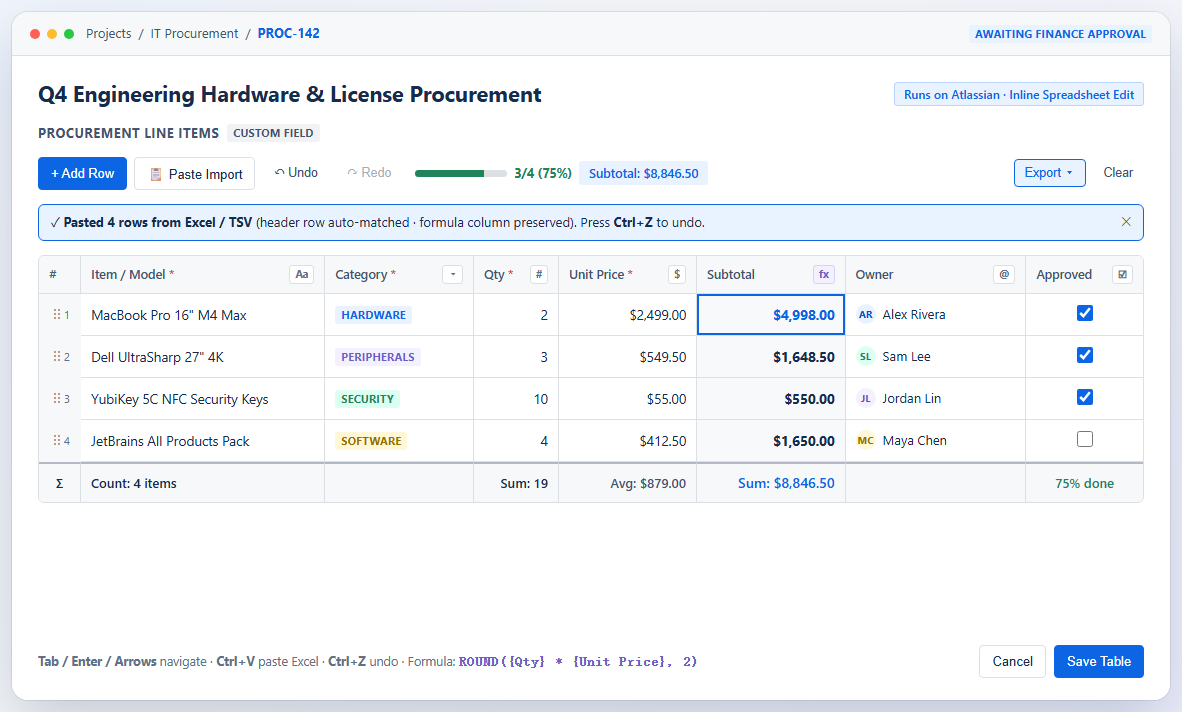
5. Locked Checklist Matrices & Jira Service Management Portals
- Locked Checklist Matrix Mode: Switch Table Mode to Locked Checklist Matrix in the configuration studio and define template rows (such as release gates or onboarding steps). Users must complete each pinned row without adding, reordering, or deleting rows, and read-only template labels are enforced both in the UI and on the server via Jira Expressions.
- Jira Service Management (JSM) Customer Portals: Add the custom field to any JSM Request Type form under Project settings → Request types. Portal customers (including unlicensed service desk customers) can fill structured line items or checklists on request creation and view formatted tables on the customer portal request page.
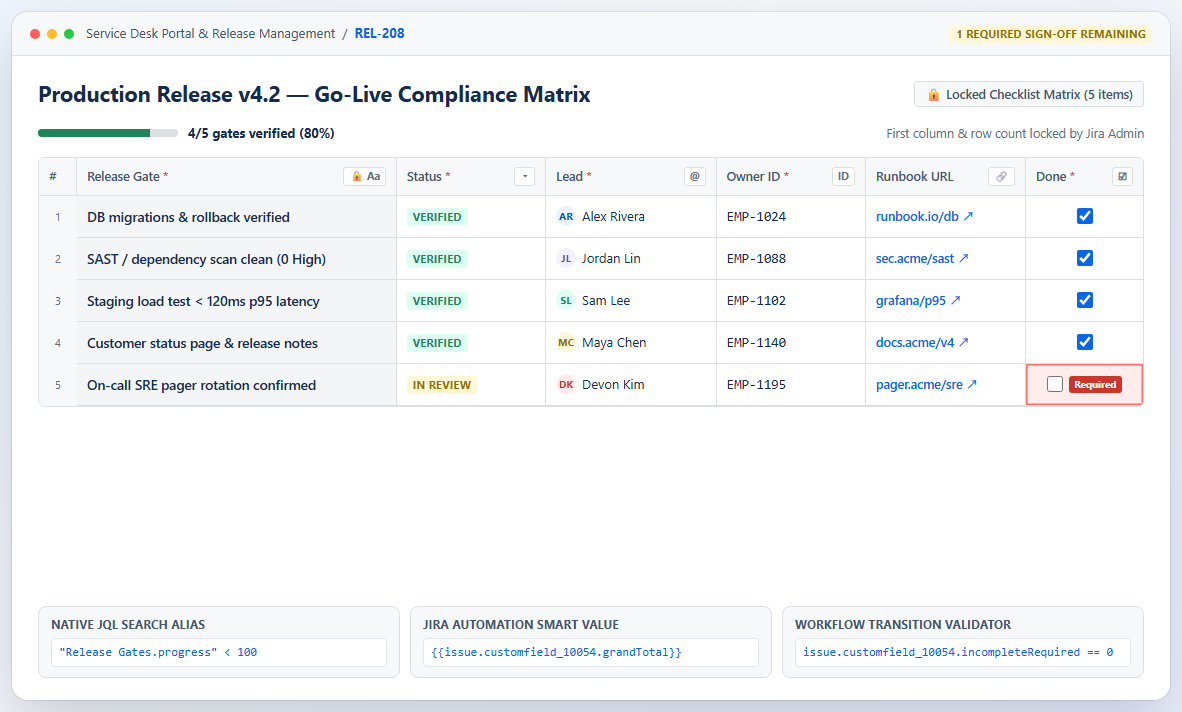
6. JQL Search Aliases, Jira Automation & Workflow Validators
Every saved table automatically indexes typed search properties so teams can filter, report, and automate without SQL plugins:
- JQL Search Examples (replace
Procurement Line Itemswith your field name):- Full-text cell search:
"Procurement Line Items.text" ~ "MacBook" - Grand total threshold:
"Procurement Line Items.total" >= 5000 - Checklist completion %:
"Release Gates.progress" < 100 - Row count & incomplete required cells:
"Release Gates.rows" > 0 AND "Release Gates.incompleteRequired" = 0
- Full-text cell search:
- Jira Automation Smart Values (replace
customfield_10054with your field ID):{{issue.customfield_10054.grandTotal}},{{issue.customfield_10054.rowCount}},{{issue.customfield_10054.completionPct}}, and{{issue.customfield_10054.incompleteRequired}}.
- Server-Side Validation & Workflow Guards: All column rules, formulas, and locked-row invariants are verified server-side by Jira's native custom field expression validator on Create and Edit. For screenless workflow transitions, add a Jira Expression Validator:
issue.customfield_10054 != null && issue.customfield_10054.incompleteRequired == 0.
7. Permissions, Lossless Licensing & Support
- Least-Privilege Scope: Requests only a single read-only Jira scope —
read:custom-field-contextual-configuration:jira— so standard Jira users and JSM portal customers can load the active column schema for their project context. - Zero-Data-Loss Subscription Handling: If a trial or subscription expires, existing table data is never hidden or deleted. Read-only issue and portal views continue displaying all saved rows, totals, and CSV/TSV/Markdown exports while inline editing pauses until an active subscription is restored.
- Need help? Visit our Support page or email support@dceniac.com. Security reports: security@dceniac.com (see our Security & Incident Response Plan).