Dceniac Markdown Writer for Jira — Documentation
Overview: Dceniac Markdown Writer for Jira adds a live-preview Markdown editor directly to Jira Cloud issues and Jira Service Management work items. Write or paste Markdown (including output from ChatGPT, Claude, GitHub, or technical docs) and save it as native Jira formatting — complete with tables, checklists, code blocks, panels, @mentions, image attachments, and editable Mermaid diagrams.
Architecture: 100% Runs on Atlassian (Forge). No external servers, databases, or third-party analytics — your issue content never leaves your Jira site.
1. Installation & Prerequisites
- Sign in to your Jira Cloud site as a Jira administrator.
- In the top navigation bar, select Apps → Explore more apps.
- Search for Dceniac Markdown Writer for Jira and click Try it free (or Get it now — free for teams of up to 10 users).
- Confirm installation. No post-install configuration screen or external API key is required; the app is immediately available on every Jira Software, Jira Work Management, and Jira Service Management issue.
2. How to Access & Test the App
Once installed, open any Jira issue (for example, PROJ-1). You can launch Dceniac Markdown Writer for Jira from two built-in entry points:
- Issue Sidebar Panel (One-Click Entry): Look at the right-hand sidebar of the issue view (under Details / Context panels) and find Dceniac Markdown Writer for Jira (if not yet expanded on the issue, click the Write in Markdown action button to reveal it). Choose:
- Edit description — opens the modal directly on the current issue description.
- Comment (or Internal note on Jira Service Management requests) — opens the modal directly in new-comment mode.
- Issue More Actions (
•••) Menu: Click the ••• button in the top-right corner of any Jira issue and click Edit in Markdown.
3. Editing Descriptions, Comments & JSM Notes
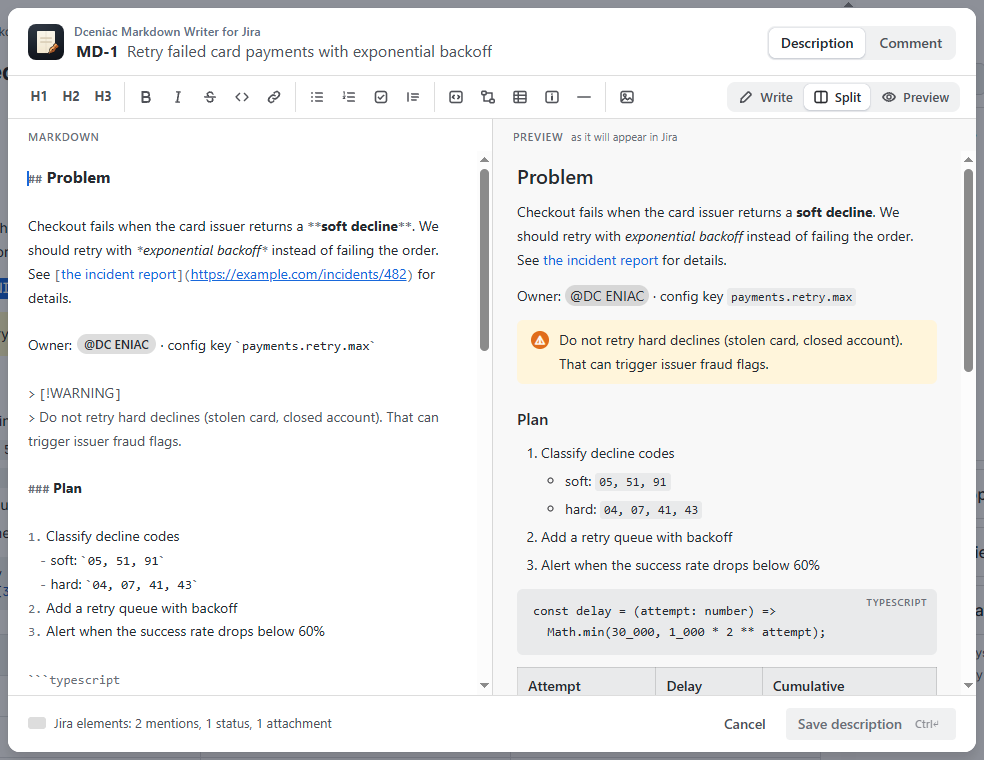
- Switch target at the top right: Use the Description and Comment tabs in the modal header to switch between the issue description and comments without losing unsaved text in either tab.
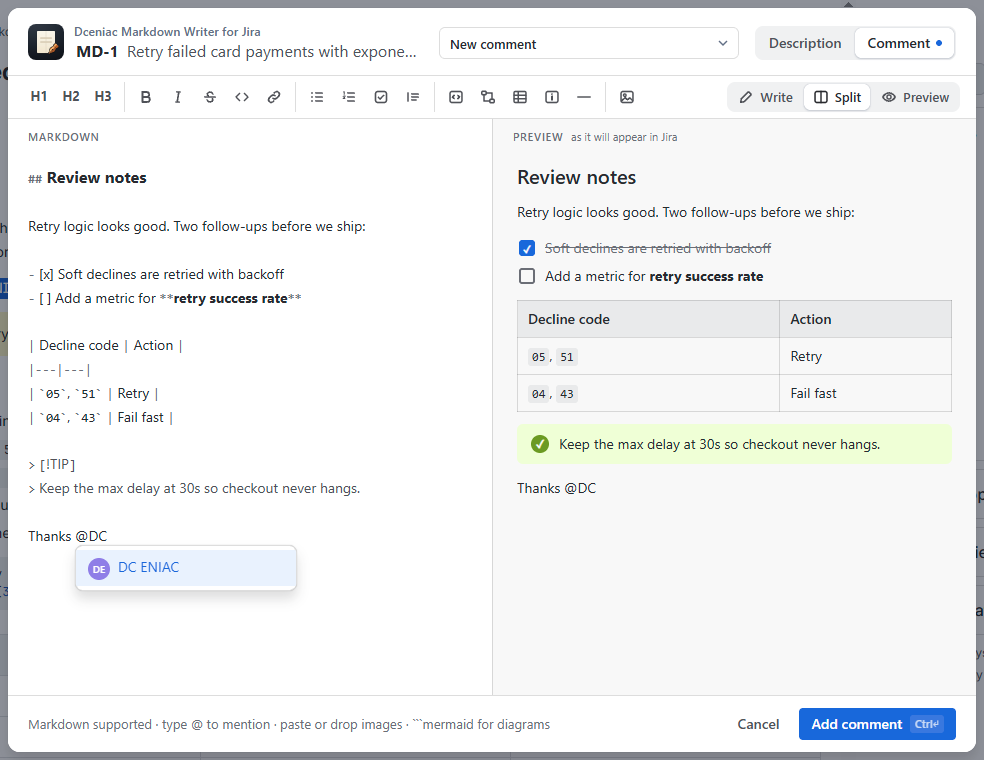
- Add or edit your own comments: When on the Comment tab, choose New comment from the header dropdown to post a new comment, or pick any entry under Your comments to convert and edit an existing comment you authored.
- Jira Service Management (JSM) safety: On service desk requests, new comments default to Internal note so internal troubleshooting is never exposed to customers accidentally. Switch the header toggle to Reply to customer when you want the customer to see and be notified of your reply.
- Save changes: Click Save description, Add comment, Add internal note, or Update comment at the bottom right — or press Ctrl+Enter (⌘+Enter on macOS). The issue view refreshes automatically when the modal closes.
4. Markdown Syntax, Live Preview & Shortcuts
Use the layout switcher on the right side of the formatting toolbar to choose Write (editor only), Split (side-by-side with synchronized scrolling), or Preview (rendered output only). When opening an empty field, click Try with sample Markdown on the welcome card to test all supported formatting in one click.
| Markdown Syntax | Saved Jira Output | Shortcut / Toolbar |
|---|---|---|
# H1 … ###### H6 | Native Jira headings (levels 1–6) | Toolbar H1 H2 H3 |
**bold**, *italic*, ~~strike~~ | Bold, italic, strikethrough text | Ctrl/⌘+B, Ctrl/⌘+I, Ctrl/⌘+Shift+X |
`inline code` | Monospace inline code | Ctrl/⌘+E |
[label](https://…) | Clickable link | Ctrl/⌘+K |
- item / 1. item | Bulleted and numbered lists (nested supported) | List toolbar buttons |
- [ ] todo / - [x] done | Interactive Jira action items (checklists) | Checklist toolbar button |
GFM pipe tables (| Col | Col |) | Native Jira tables | Table toolbar button |
```ts … ``` | Syntax-highlighted Jira code block | Code block toolbar button |
> [!NOTE], [!TIP], [!IMPORTANT], [!WARNING], [!CAUTION] | Native Jira Info, Success, Note, Warning, and Error panels | Info panel toolbar button |
> quote and --- | Blockquote and horizontal divider | Quote & Divider buttons |
5. @Mentions, Images & Mermaid Diagrams
- User @mentions: Type
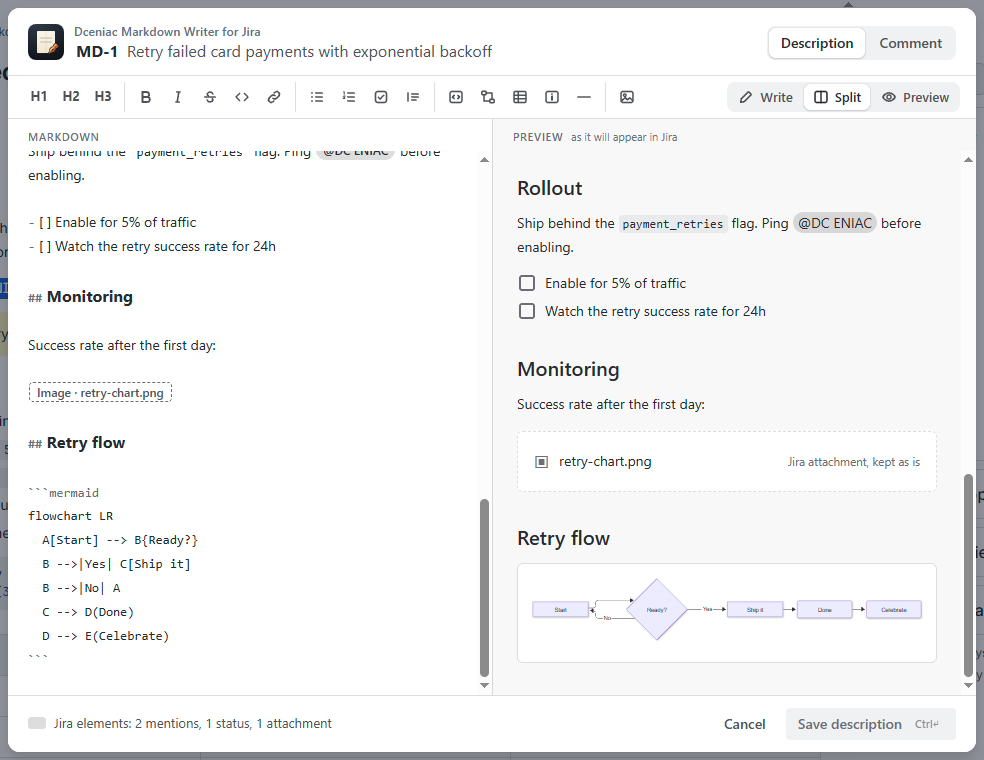
@followed by a name or email prefix in the editor. Pick a user from the autocomplete menu to insert an atomic Jira mention chip that notifies your teammate on save. - Paste, drop, or upload images: Paste screenshots directly from your clipboard (Ctrl/⌘+V), drag image files onto the editor, or click the Image toolbar icon. Images are uploaded straight to the Jira issue as native attachments, and any unsaved uploads are automatically cleaned up if you discard your changes.
- Editable Mermaid diagrams: Insert a
```mermaidfenced block (flowcharts, sequence diagrams, state diagrams, class diagrams, ER diagrams, Gantt charts, etc.). When you save:- The diagram is rendered in your browser and attached to the issue as a high-resolution PNG image so every teammate and customer can read it — even without opening the app.
- The Mermaid source text is stored right below the image inside a collapsed Mermaid source expand block.
- Whenever you reopen the description or comment in Dceniac Markdown Writer for Jira, the PNG + expand pair is automatically turned back into an editable
```mermaidcode block.
6. Content Safety, Conflict Protection & Local Drafts
- Preserved Jira elements: Existing rich Jira elements that plain Markdown cannot express — such as status lozenges, dates, link cards, custom panels, multi-column layouts, macros, or tables with merged/colored cells — are displayed as compact atomic chips in the editor and restored untouched on save. If inline styling without a Markdown equivalent (such as underline or custom text color) would be dropped, a warning banner informs you before you save.
- Concurrent edit protection: Before overwriting an issue description or comment, the app verifies that Jira's live copy matches the version you opened. If a teammate edited the issue in the meantime, saving pauses and asks whether to keep editing or explicitly overwrite.
- Browser draft recovery: Unsaved edits are saved locally in your browser's storage (scoped by Jira site, user account, and issue key, and automatically purged after 14 days). If you close the modal or browser tab by accident, reopening the issue offers a one-click Restore prompt.
7. Permissions, Data Privacy & Troubleshooting
- Required Jira scopes:
read:jira-work— loads the current issue summary, description, comments, and attachment metadata as the signed-in user.write:jira-work— saves descriptions, posts/updates comments, and uploads or cleans up diagram/image attachments as the signed-in user.read:jira-user— powers user search for@mentions.
- Subscription status ("Why can I write and preview, but not save?"): Writing and live preview always remain available so you never lose work, while saving to Jira and uploading images require an active Marketplace trial or subscription (free for up to 10 users). If a subscription was just activated, click Retry subscription check in the modal footer.
- Need help? Visit our Support page or email support@dceniac.com. For security disclosures, email security@dceniac.com (see our Security & Incident Response Plan).